
In modern mechanical design and engineering design validation, accurate representation of component motion is essential for validating functionality and ensuring reliability. SOLIDWORKS, a leading tool in CAD assemblies and parametric modeling, provides a range of assembly constraints to address this need. Among these, Limit Mates play a crucial role. These mates enable controlled relative motion by defining permissible ranges, thereby enhancing both motion simulation and virtual prototyping accuracy. _________________________________________________________________________
Introduction to Limit Mates
A Limit Mate is an advanced constraint-based modeling feature that allows relative motion between components within specified minimum and maximum values. Unlike standard mates, which fully restrict degrees of freedom (DOF), limit mates provide bounded flexibility, enabling components to move realistically within predefined limits.
Such constraints are particularly useful in assemblies where motion must be restricted to safe or functional ranges, supporting effective mechanical simulation and kinematic analysis.
Significance in Mechanical Design
The application of limit mates is fundamental in achieving realistic assembly behaviour. Their importance can be summarized as follows:
• They ensure that component motion remains within design-intended boundaries
• They prevent overextension or component interference during operation
• They support accurate motion simulation and kinematic analysis
• They reduce the need for additional configurations or manual adjustments
• They contribute to efficient design optimization and validation
Classification of Limit Mates
Limit mates in SOLIDWORKS are typically applied in the following forms:
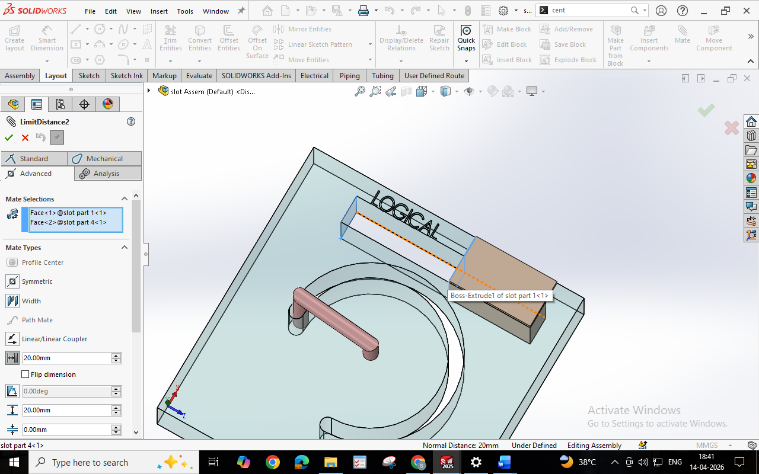
Limit Distance Mate: –
This mate controls linear displacement between selected entities by specifying minimum and maximum distances. It is commonly used in applications such as sliding mechanisms and telescopic assemblies within assembly modeling.
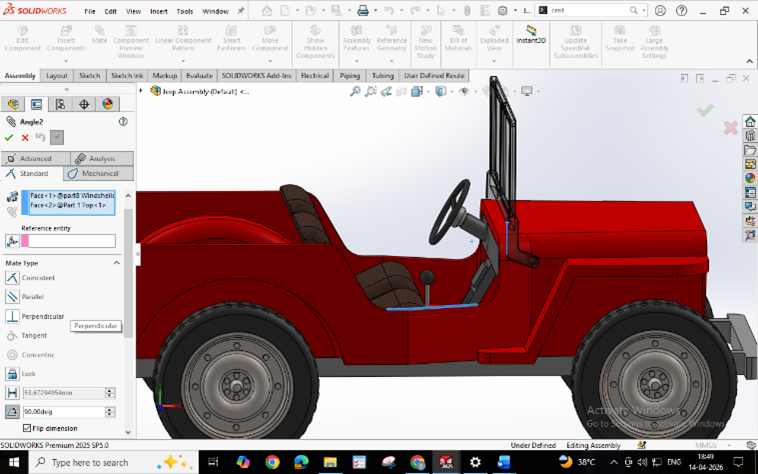
Limit Angle Mate: –
This mate restricts rotational movement between components within a defined angular range. Typical applications include hinges, flaps, and rotating joints requiring precise motion control.
Procedure for Creating a Limit Mate
The process of defining a limit mate in an assembly is outlined below:
- Open the desired assembly model in SOLIDWORKS.
- Select the Mate command from the Assembly toolbar.
- Choose the relevant geometric entities (faces, edges, or planes).
- In the Mate Property Manager, select either Distance or Angle.
- Enable the Limit option.
- Specify the minimum and maximum values for the constraint.
- Confirm the operation to apply the mate within the CAD assembly.
Best Practices
To ensure effective use of limit mates, the following practices are recommended:
• Define limits based on realistic operational requirements
• Maintain proper alignment of components before applying mates
• Avoid excessive constraints that may restrict intended degrees of freedom (DOF)
• Utilize reference geometry for improved accuracy in parametric modeling
Common Errors
Several issues may arise if limit mates are not applied correctly:
• Assigning identical minimum and maximum values, which eliminates motion
• Misalignment of selected entities, leading to unexpected behaviour
• Inconsistent unit selection, resulting in incorrect constraint values
• Poor constraint definition affecting mechanical simulation results
Conclusion
Limit mates constitute a vital feature in SOLIDWORKS for simulating controlled motion within assemblies. By enabling movement within defined boundaries, they facilitate accurate representation of real-world mechanisms and improve virtual prototyping and engineering design validation.
A thorough understanding and proper application of limit mates can significantly enhance the efficiency, reliability, and realism of mechanical design, while supporting advanced motion control, design optimization, and kinematic analysis.
Follow us on LinkedIn for professional updates: Click Here
Like our Facebook page for news & events: Click Here
Watch tutorials and product videos on YouTube: Click Here
Explore SOLIDWORKS pricing, licensing, and exclusive offers: Click Here
Contact our experts for a quick demo or consultation: Click Here